
How an import works
Every password manager and every browser can produce an export file. Your vault reads all the common ones. The shape is always the same:
Export a file from the old system
Import it into your vault, choosing where the items land
Your personal vault, or straight into an organisation collection.
Delete the export file properly
You do not have to import anything at all. A perfectly good alternative is to install the browser extension and let it offer to save each login as you use it over the next fortnight. Slower, but you end up with only the accounts you actually use, and no export file ever exists. For a business with a handful of logins, this is often the better path.
The export file is the dangerous bit
An export is every password you own, in plain readable text, sitting in your Downloads folder. For the few minutes it exists it is the least protected your passwords will ever be. Treat it like cash on the desk.
- Do it on a computer you trust, not a shared or public machine.
- Never email it, never put it in Dropbox, Google Drive or Slack, not even to yourself.
- Delete it the moment the import is verified, then empty the recycle bin or trash.
- Clear it from your browser downloads list as well, since that list is a map to it.
If your old manager offers an encrypted or password protected export and your vault can read that format, prefer it. Otherwise plain CSV is fine as long as it lives for five minutes and is then gone.
Getting the file out of your old system
The wording moves around between versions, so this is the reliable recipe: open the old tool's settings and look for export. You will be asked to confirm your password. Choose CSV unless the table below says otherwise.
| Coming from | Where to look | Choose |
|---|---|---|
| LastPass | Advanced options, then Export | LastPass (csv) |
| 1Password | File or account menu, then Export | 1Password (csv), or the 1pux format if offered |
| Dashlane | My account, then Settings, then Export | Dashlane (csv) |
| Keeper | Account, then Settings, then Export | Keeper (csv) |
| Chrome, Edge, Brave | Browser settings, search for passwords, then the three dot menu | Export passwords, gives a csv |
| Safari or iCloud Keychain | Passwords app or Safari settings, then Export | Export all passwords, gives a csv |
| Firefox | Passwords, then the three dot menu | Export logins, gives a csv |
| Another Bitwarden or Vaultwarden vault | Tools, then Export vault | json, encrypted if you prefer |
If your old tool is not listed, export CSV and see starting from a spreadsheet: any CSV can be reshaped into the format your vault reads.
Importing it into your vault
Do this in the web vault, in a browser. The import screen is not in the phone app.
Sign in at your vault address
https://acme.vault.businessops.com.auSelect Tools, then Import
Choose where the items should go
The Vault dropdown offers My vault and your organisation. Business logins belong in the organisation, and you can pick the collection they land in.
If in doubt, import into your own vault first, tidy up, then move the business ones across. Nobody else sees anything until you do.
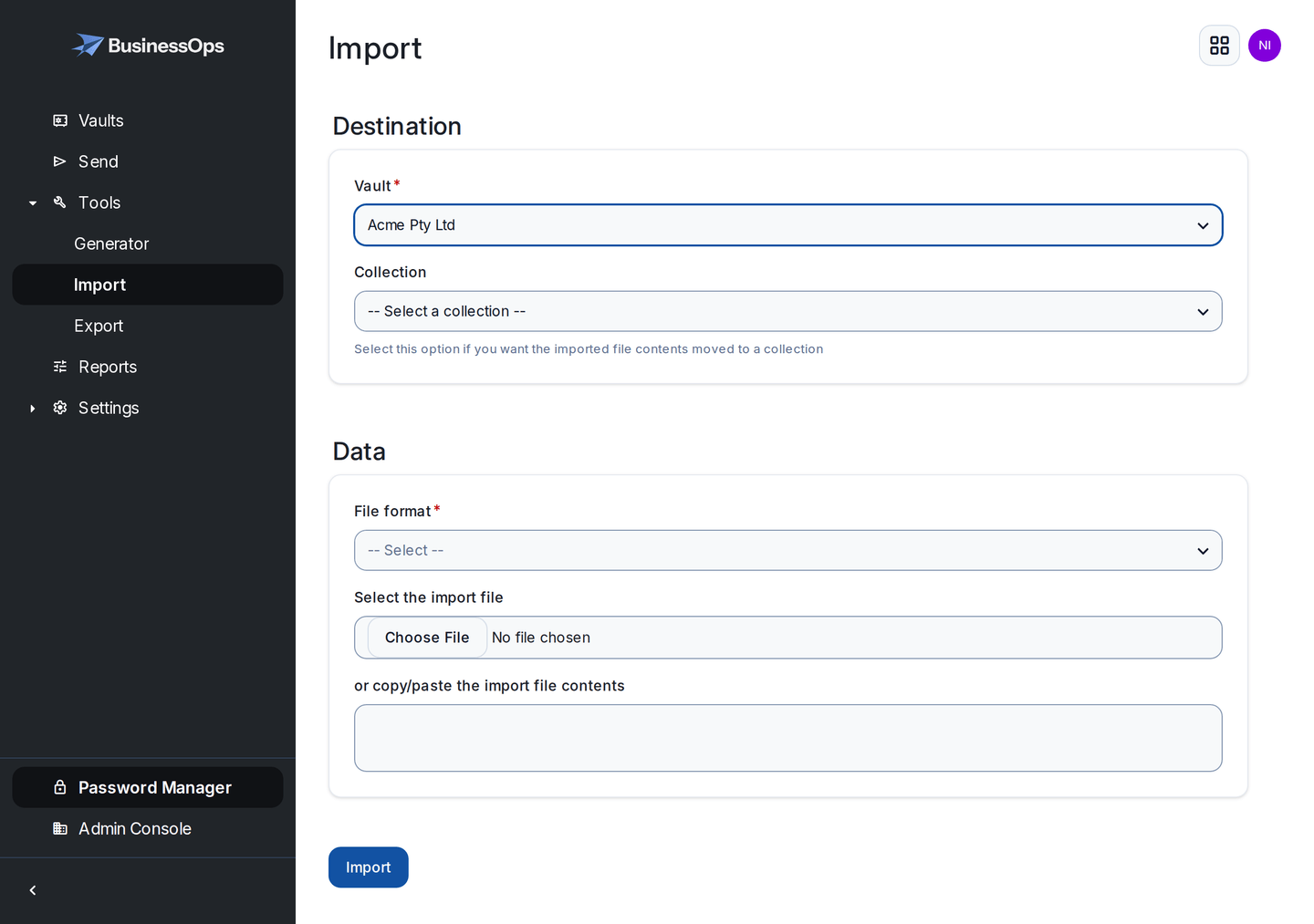
Destination first, file format second. Picking the organisation here is what makes the imported logins shared rather than private. Pick the matching format in File format
Choose the entry that names the tool you exported from, such as LastPass (csv). Choosing the wrong one is the usual cause of a mangled import.
Upload the file and import
Spot check five items
Open a few and confirm the username, the password and the website address all arrived. Then, and only then, delete the export file.
Importing does not check for duplicates. Run the same file twice and you get two of everything. If an import goes wrong, the fix is to delete the imported items and start again rather than importing a corrected file on top.
Two things never come across: file attachments, which have to be uploaded again by hand, and Sends, which have to be recreated. Passwords, usernames, notes, website addresses and authenticator codes all come through normally.
Enter your vault name to personalise the steps on this page.
https://acme.vault.businessops.com.au Showing an example address. Enter your own vault name above to personalise these steps.
Starting from a spreadsheet
Plenty of businesses arrive with passwords in Excel or Google Sheets. That is what we are here to fix, and it imports fine. Rename your columns to match the format below, save as CSV, and choose Bitwarden (csv) as the file format.
For an import straight into your organisation, the header row is:
collections,type,name,notes,fields,reprompt,login_uri,login_username,login_password,login_totp You only need to fill in five of them:
| Column | Put in it |
|---|---|
collections | The collection name, such as Finance. Leave blank to land it in the default collection. |
type | login for every row that is a username and password. |
name | What people will search for, such as Xero. |
login_uri | The web address you sign in at. This is what makes autofill work, so it is worth filling in. |
login_username and login_password | The obvious. |
Leave the rest empty but keep the columns. Anything that does not fit, such as an account number or a customer reference, can go in notes.
Then deal with the spreadsheet itself. Delete it from the shared drive, from email attachments, from the backup that runs nightly, and from anyone's desktop. Leaving the old spreadsheet in place while also running a password manager gives you the cost of both and the safety of neither.
After the import: three jobs
Turn off the password manager built into your browser
Otherwise two systems fight over every login box, people keep saving new passwords into Chrome where nobody else can reach them, and your vault silently goes out of date. In your browser settings, search for passwords and switch off offering to save. Do this on every machine, and tell your team to do it too.
Move the business logins into collections
If you imported into your own vault, move anything the business owns across to the organisation now, while you still remember which is which. See deciding who sees what.
Fix the worst passwords, a few at a time
You now have a list of every password the business uses, which is usually a sobering document. Do not try to fix it in one sitting. Change the reused ones on the accounts that matter most, banking, email, the domain registrar, and let the generator make the new ones. Nobody has to remember them now.
Import came out wrong?
Do not import again on top. Email hello@businessops.com.au telling us what you exported from and what looks wrong, and we will talk you through clearing it out. Never send us the export file.