
Start by saving your vault address
Your vault has its own web address. Every app you install has to be pointed at it before you can sign in, so it is worth having on hand. Type your vault name below and these guides will show your real address instead of an example. It stays in this browser only.
Whatever you chose at checkout. Type just the name, such as acme, or paste the full address if you brought your own domain.
https://acme.vault.businessops.com.au Showing an example address. Enter your own vault name above to personalise these steps.
Not sure of your address? It is in the invite email we sent your vault admin, and in the confirmation page you saw after checkout. If you cannot find either, ask us and we will tell you.
Your first day, in order
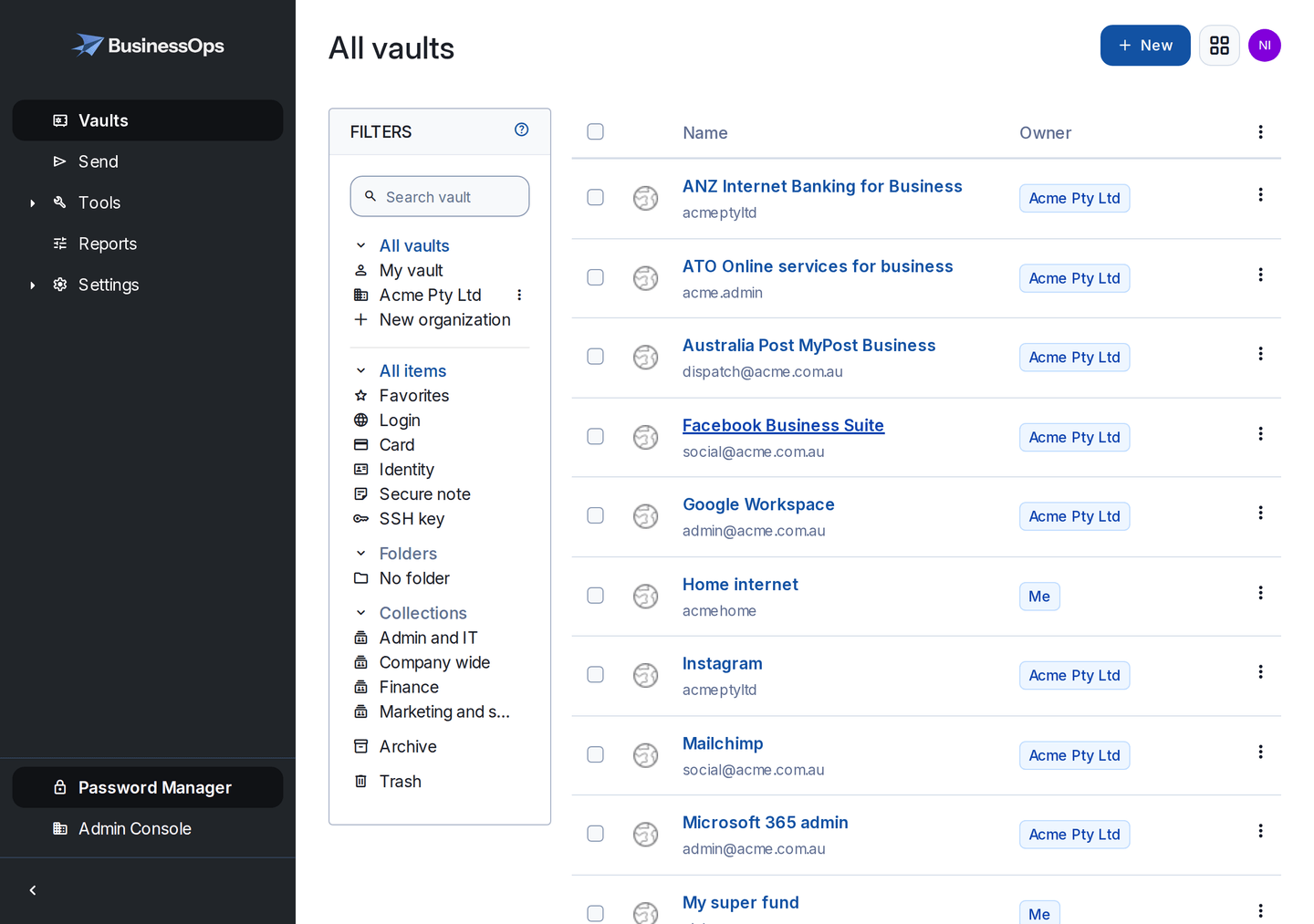
If you have just bought BusinessOps Passwords, do these three things and you are running. Everything else can wait until next week.
Set up your own account and organisation
Accept the invite, choose a master password you will not lose, and create the organisation that will hold your shared business logins. Open the guide.
Install the app on your phone and your browser
The one step people miss is telling the app which server to use. Open the guide.
Invite your team
Each person gets their own account and their own master password. You choose what each of them can see. Open the guide.
All guides
Your first 20 minutes
Accept your invite, set a master password, create your organisation and your first collection.
SetupInstall the apps
Browser extension, iPhone, Android, Windows and Mac desktop, and the command line. Including the server address step.
EverydayUsing it day to day
Save and fill logins, generate passwords, store two-factor codes for shared accounts, and get back something deleted.
Day to dayAdd your team and share logins
Invite people, confirm them, organise logins into collections, and remove access the day someone leaves.
SetupBring your existing passwords in
Import from LastPass, 1Password, Chrome, Edge, Safari, or a spreadsheet, then clean up safely.
SecurityTwo-step login and recovery
Turn on two-step login, set up emergency access, and decide what happens when someone forgets a master password.
SecurityKeep your own backup copy
How to export your organisation vault, check the export actually works, and store it properly.
OptionalUse your own domain name
Run your vault at an address like vault.yourcompany.com.au. Two DNS records, done by you, no charge.
AccountBilling, invoices and cancelling
How the 14 day trial works, when you are charged, how to get invoices, and how to stop.
SupportWhen something is not working
The invite never arrived, the app will not connect, a member is stuck, and the other usual suspects.
Quick answers
Do I need to be technical to set this up?
No. Your vault is already built and running before you touch it. Your part is accepting an email invite, choosing a master password, and installing an app. If you can set up a work email account on your phone, you can do this.
What software am I actually using?
Your vault runs the open-source Vaultwarden server, on your own dedicated instance in Australia. You use it through the official Bitwarden apps and browser extensions, which is why these guides refer to them by name. There is nothing to buy from anyone else, and the apps are free.
Can BusinessOps see our passwords?
No. Everything is encrypted on your device before it reaches us, with keys derived from master passwords we never receive. The flip side matters just as much: we cannot recover your data if every master password and recovery option is lost, which is why setting up recovery is on the first day list. The full picture is on the security page.
How many people can we add?
Up to 20 on the standard plan, at no extra cost per person. If you need more than 20, talk to us and we will sort out a plan that fits.
Where do I find my invoices?
Stripe emails a receipt for every payment to the address you used at checkout. If you need a copy, a tax invoice, or a change of billing details, see billing.
Stuck on something these guides do not cover?
Email hello@businessops.com.au with your vault address and what you were trying to do. We answer during Australian business hours, and we would rather fix the guide than answer the same question twice.