
Why this page matters more than it looks
Your vault is encrypted so that we cannot read it. The consequence is that we also cannot rescue you. There is no support ticket that recovers a lost master password, because there is no copy of it anywhere and no back door in the mathematics.
So the recovery has to be arranged in advance, by you, while everything still works. There are three mechanisms and they solve different problems:
| Set up | Solves | Who needs it |
|---|---|---|
| Two-step login | Someone steals or guesses a master password | Everyone, starting with you |
| Account recovery | A staff member forgets their master password | The whole organisation, turned on once |
| Emergency access | The owner is unavailable, incapacitated or worse | You and any other owner |
Turn on two-step login
Two-step login means a stolen master password is not enough on its own. On your vault you can use any of these:
- An authenticator app, such as the one built into your vault on another device, or any standard authenticator. The best balance of safety and convenience for most people.
- A code sent to your email. Easiest to set up. Weaker, because anyone who gets into your email gets into your vault, so it is a poor choice for the email address that also resets everything else.
- A security key or passkey, using a hardware key or the biometrics built into your laptop or phone. The strongest option, and the only one that cannot be phished.
Sign in to the web vault
https://acme.vault.businessops.com.auOpen your account settings and find Two-step login
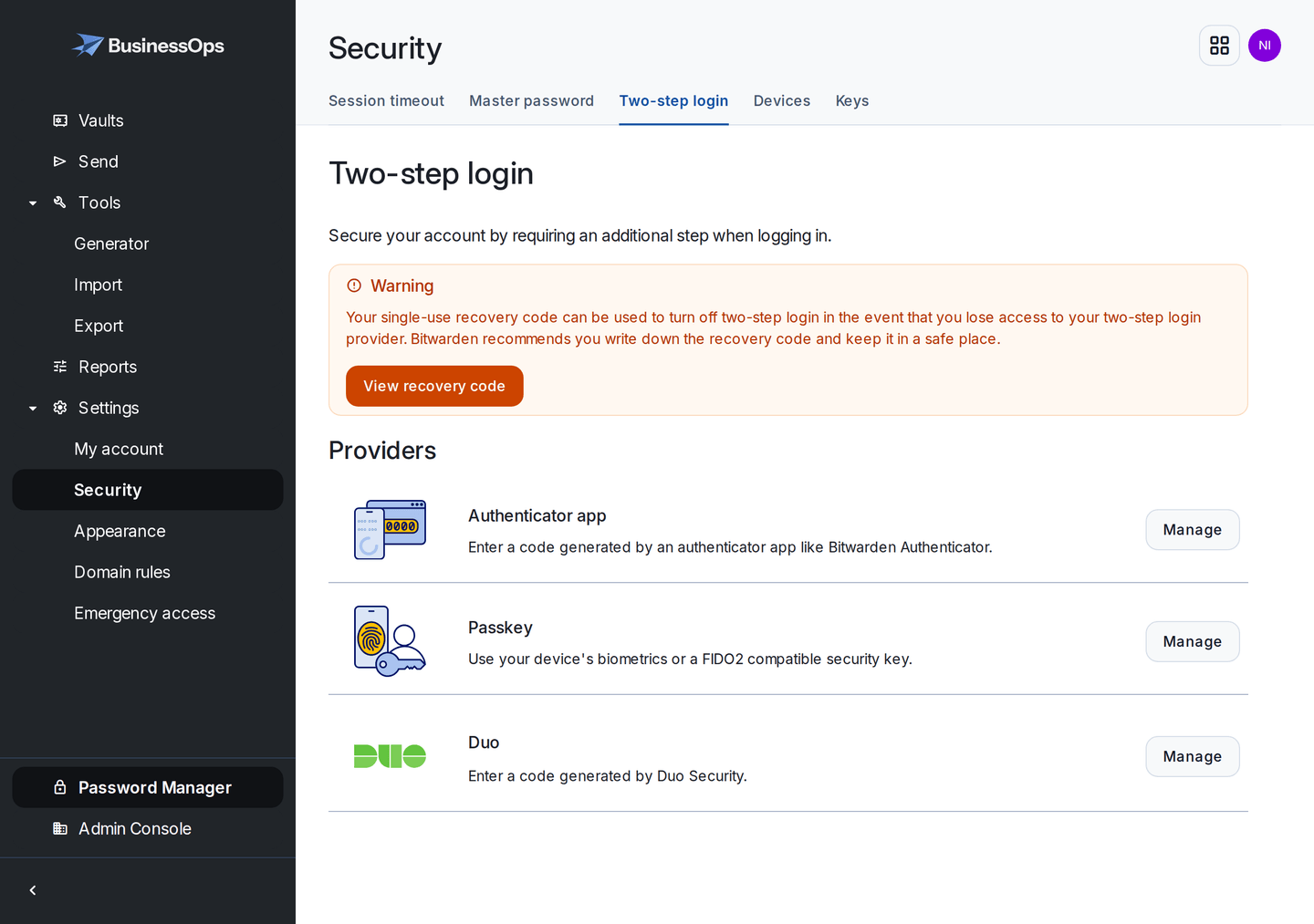
Settings, then Security, then Two-step login. Set one up and test it before you close the tab. Set up your chosen method and test it before you close the tab
Save the recovery code somewhere physical
You are given a two-step login recovery code. It is the way back in if you lose the phone with your authenticator on it. Print it or write it down, and put it with your master password, not on the phone it is protecting.
Do not put your only authenticator on the same phone you use to unlock the vault and nowhere else. A dropped phone should be annoying, not catastrophic. Either use a second device, or keep that recovery code somewhere you can actually reach.
Enter your vault name to personalise the steps on this page.
https://acme.vault.businessops.com.au Showing an example address. Enter your own vault name above to personalise these steps.
Requiring it for the whole team
Once your own account is set up, you can require two-step login across the organisation. In the Admin Console, under Settings, then Policies, turn on the two-step login requirement.
Warn people first. Turning this on cuts off members who have not set up two-step login yet, until they do. Give the team a week's notice and a link to this page, then switch it on. Doing it without warning on a Monday morning creates a queue at your desk.
Account recovery: the fix for a forgotten master password
This is the one that saves you real money and real time. With account recovery turned on, an owner or admin can reset a staff member's master password without losing the business logins in their collections.
Turn on the policy
Admin Console, Settings, Policies, then Account recovery administration.
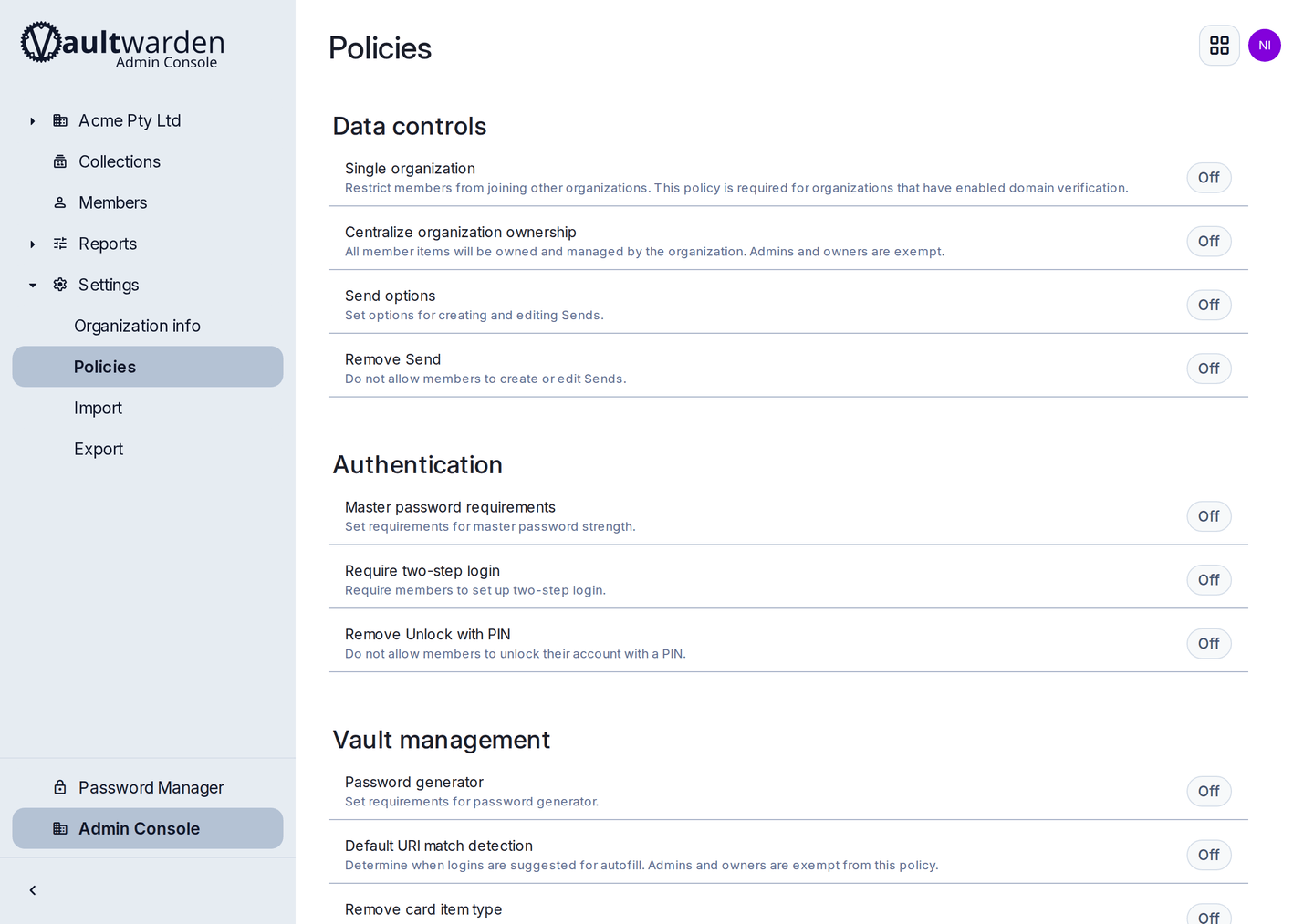
Every policy on this screen applies to your whole organisation. Account recovery and the two-step login requirement are the two worth turning on. Switch on automatic enrolment while you are there
That way everyone you invite from now on is covered without anyone having to remember a second step.
Ask existing members to enrol
Anyone who joined before you turned the policy on has to enrol themselves, from their own account settings. It takes them ten seconds. Until they do, you cannot recover their account, so chase it.
Check the Members list
It shows who is enrolled. Anyone who is not is a person whose forgotten password will cost you an afternoon.
What this does not do: it does not let you read anyone's private items behind their back. It hands the staff member's account a new master password that you set and they then change, which is a deliberate, visible act. Everything about it is logged.
Emergency access: the fix for you
Account recovery covers your staff. It does not cover the owner, because there is nobody above you. Emergency access does: you nominate a trusted person who can request access to your vault, and if you do not respond within a waiting period you set, they get it.
Make sure your trusted contact has an account on your vault
They must be a user on your own vault, not on some other password service. Usually this is your second owner, your business partner, or your accountant if they are already in the system.
Open your account settings and find Emergency access
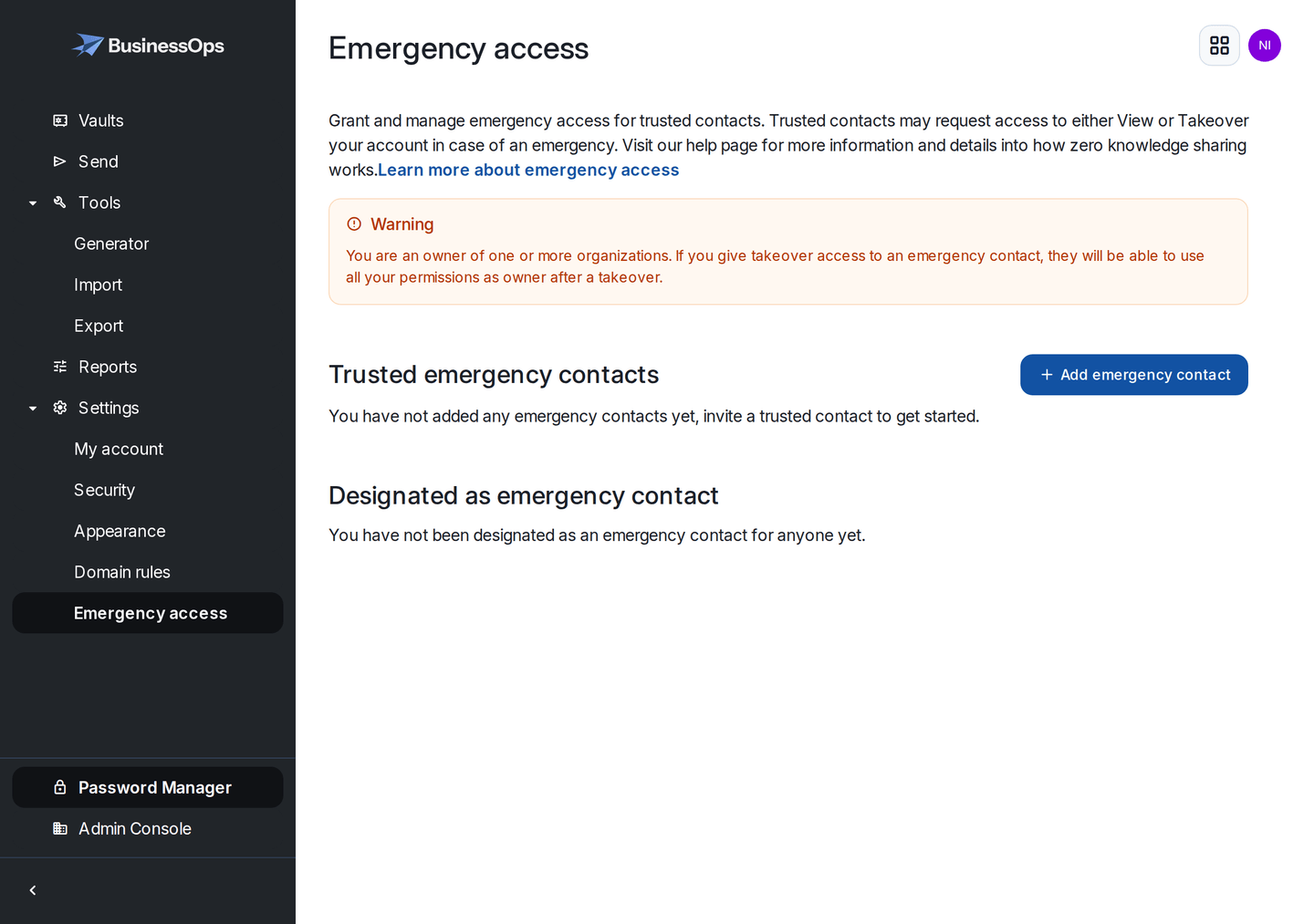
Emergency access sits in your own account settings, not in the Admin Console. It protects you, not the organisation. Add them as a trusted emergency contact
Choose the access level
View lets them read your vault. Takeover lets them set a new master password on your account, which replaces yours and removes your two-step login. For a business owner, Takeover is usually the right answer, because the point is that the business keeps running.
Set the waiting period
This is your protection against the feature being misused. If they request access, you are emailed, and you can refuse. If you do not respond within the waiting period, access is granted automatically. Seven days suits most small businesses: long enough that a holiday does not trigger it, short enough to be useful in a genuine emergency.
Tell the person you have done this. Emergency access is worthless if the trusted contact does not know they are the trusted contact, or does not know that requesting it is even possible. Write it down with your business continuity notes.
Someone forgot and nothing was set up
Straight answer, because you will want to know before it happens.
- If they were enrolled in account recovery: you reset it yourself in a couple of minutes. Nothing is lost.
- If they were not: their account cannot be unlocked by anybody, including us. The way forward is to remove that account and invite them again as a new one. Ask us and we will do the removal for you.
- What survives that: everything in your organisation collections. Those items belong to the organisation, not to the person, so re-inviting them restores their access to all of it.
- What does not survive: anything they had saved in their own My vault. That is unrecoverable. This is the reason for the rule in personal vault or organisation: business logins belong to the organisation.
The same is true of your own account, with no fallback at all. If you are the only owner, have no emergency access contact, and lose your master password, nobody can administer your organisation again. Ten minutes on emergency access removes that risk permanently.
Extra protection on your most sensitive items
On any individual item you can turn on a master password re-prompt. The vault then asks for the master password again before revealing or filling that particular login, even on an already unlocked device.
Worth doing on:
- Business banking and anything that moves money
- The domain registrar, because losing the domain loses the email
- Your main email account
- Anything that would let someone reset everything else
It is a small friction on about six items, and it means an unattended unlocked laptop is not the same thing as an open bank account.
Locked out right now?
Start with locked out of an account. If you need us to remove an unrecoverable account so it can be re-invited, email hello@businessops.com.au from your vault admin address. We will only act on a request from the named admin.