
Before you start
You need two things and neither takes long:
- Access to the inbox you gave us at checkout as the vault admin email. The invite goes there and only there.
- A master password you have decided on and can store somewhere safe. More on that below, because it is the one decision on this page you cannot undo.
Enter your vault name to personalise the steps on this page. Just the name, such as acme, or the full address if you brought your own domain.
https://acme.vault.businessops.com.au Showing an example address. Enter your own vault name above to personalise these steps.
Open your invite email
Find the email
It comes from BusinessOps Passwords, at
noreply@businessops.com.au. If it is not in your inbox, check spam and junk before anything else. It usually arrives within a few minutes of your payment going through.The subject line mentions Vaultwarden. That is not a mistake and it is not spam. Vaultwarden is the open-source server software your vault runs on, and it sends this first email itself. Everything after this point carries your own organisation name.
Click the link within 5 days
Invite links expire 5 days after they are sent. If yours has expired, nothing is lost: see expired invites and we will send a fresh one.
Check the address before you type anything
The link opens your vault at
https://acme.vault.businessops.com.au. Confirm that is the address in the browser bar before you enter a password. This is the habit that protects you from every phishing email you will ever get about your password manager.
Choose your master password
This one password unlocks everything else. It is also the one thing on your vault that nobody, including us, can reset for you.
Read this before you type it. Your vault is encrypted with keys derived from your master password. We never receive it and we do not store it. If you lose it and you have not set up recovery, the data in your account is gone permanently. That is the cost of encryption strong enough to keep everyone else out too.
What makes a good one
- Long beats complicated. Four or five unrelated words you can picture, such as a phrase you would never say out loud, beats a short password full of symbols. Aim for 16 characters or more.
- Never reused. It must not be a password you use anywhere else, especially not your email.
- Write it down and store it physically. A sealed envelope in the safe, or with your accountant alongside the other documents you would need after a bus accident. This is not bad practice, it is the recognised way to protect a single unrecoverable secret.
There are no password hints on your vault. We turn them off deliberately, because a hint good enough to remind you is usually good enough for someone else to guess. Your safety net is emergency access and account recovery, which you should set up in your first week.
Enter your master password twice and finish creating the account
You will be asked to confirm it. Take the extra ten seconds to check what you typed.
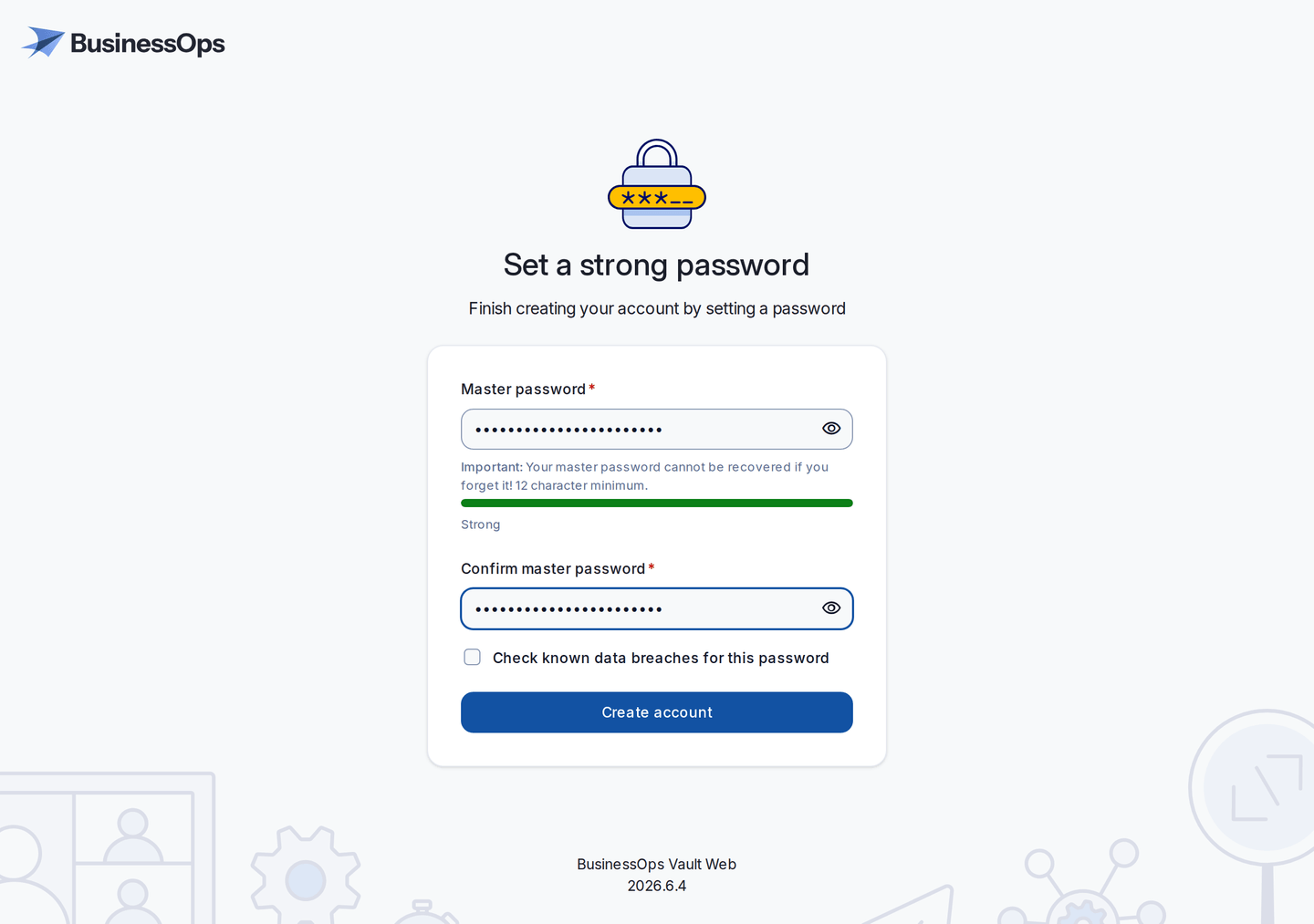
Setting the master password. The warning is not boilerplate: this is the one password nobody can reset for you. Sign in
You land in your own vault at
https://acme.vault.businessops.com.au. It is empty, which is correct.
Create your organisation
An organisation is the shared part of your vault: the logins that belong to the business rather than to one person. You need it before you can invite anybody or share anything.
Select New organisation
From the vault screen, look for the option to create a new organisation. On a narrow screen it may be behind the menu button.
Name it after your business
Use the trading name your staff will recognise, such as Acme Pty Ltd. Everyone you invite sees this name, so it is worth getting right the first time.
Put your admin email in the email field
It is only used inside the app. Your actual subscription and invoices are handled by BusinessOps through Stripe, not here. See billing.
Select Submit
That is the whole form. There is no plan to choose and no second bill hiding inside the app: your vault has no seat limits of its own, and what you pay us is what you pay.
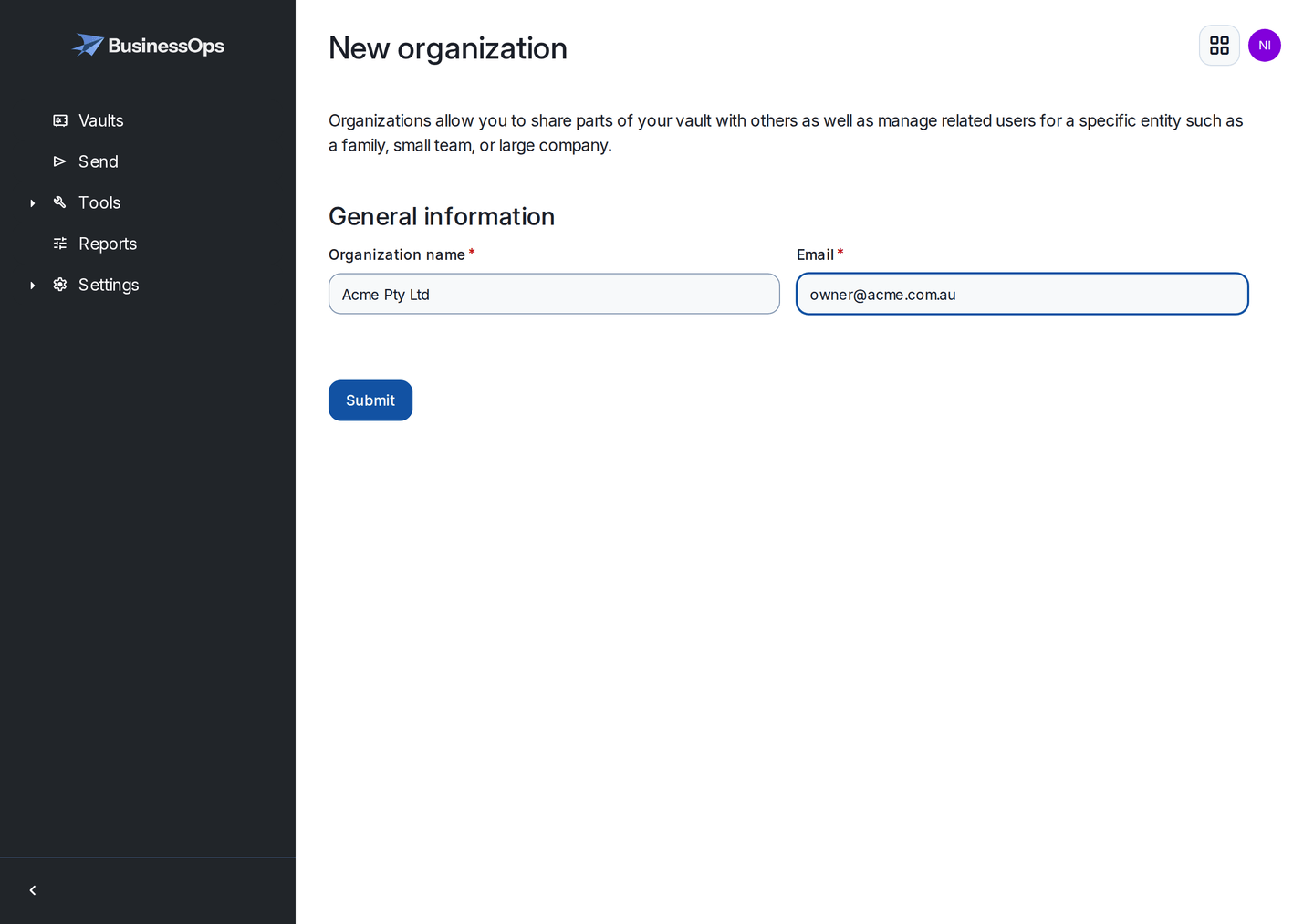
Two fields and a Submit button. Everyone you invite will see the name you type here.
Only the vault admin email can create the organisation. We lock organisation creation to the address you gave us at checkout, so nobody else on your vault can spin up a parallel organisation. If the wrong person needs to do it, tell us and we will move it.
Create your first collections
A collection is a folder of shared logins that you grant people access to. Access is granted per collection, so a little thought here saves a lot of tidying later.
Most small businesses need three or four to begin with:
| Collection | What goes in it | Who gets it |
|---|---|---|
| Company wide | Logins genuinely everyone needs, such as the shared inbox or the booking system | Everyone |
| Finance | Banking portals, accounting software, payroll, the ATO | Owner and bookkeeper only |
| Marketing and socials | Facebook, Instagram, the website, ad accounts, mailing list | Whoever posts |
| Admin and IT | Domain registrar, hosting, phone system, the router | Owner and whoever fixes things |
The finance one is the point of the exercise. If a staff member leaves tomorrow and you have to change every password they knew, the difference between an afternoon of work and five minutes is whether banking lived in its own collection.
Create collections from the Admin Console, under Collections. Select New, then Collection. You can rename them or add more at any time.
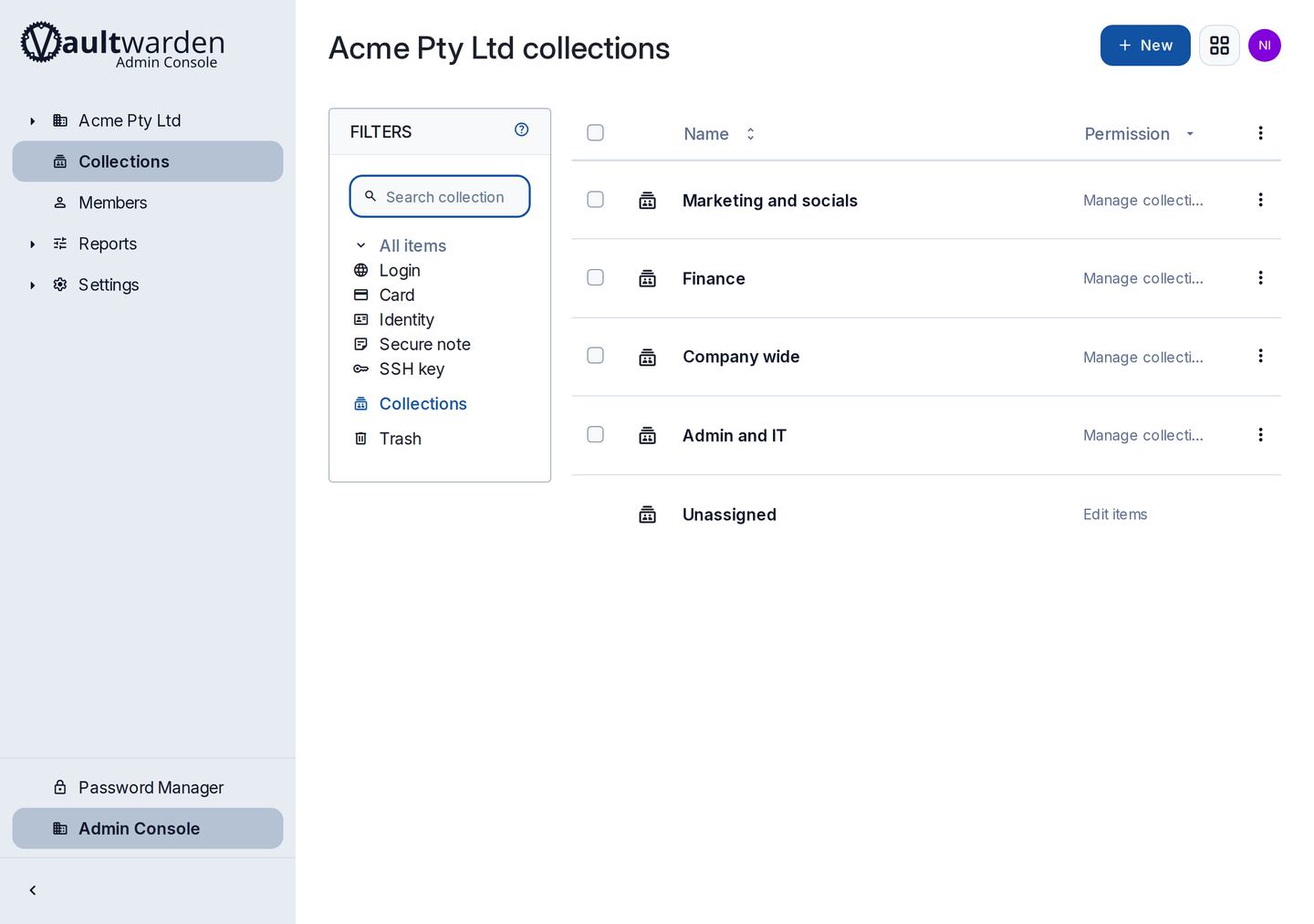
Add your first shared login
Create a new item
Give it a name a colleague would search for, such as Xero rather than accounting thing.
Set the owner to your organisation, not yourself
This is the step that decides whether the login is shared or private. If the owner stays as you, nobody else will ever see it.
Choose the collection it belongs to
Anyone with access to that collection gets the login, immediately and automatically.
Save, then change that password
Now that the password does not have to be memorable or shared by message, replace it with a long generated one. Use the generator built into the app. Nobody has to remember it ever again.
Personal vault or organisation: the one thing to understand
Every person on your vault has two places to keep things, and mixing them up is the source of most confusion later.
| My vault | The organisation | |
|---|---|---|
| Who can see it | That person only | Everyone you grant the collection to |
| What belongs there | Their own accounts, personal and work | Business logins the company owns |
| When they leave | Goes with them, you never had it | Stays with the business |
| Can an owner see it | No, not even you | Yes, if the collection is shared with them |
The rule to tell your team: if the business would need the login after you left, it belongs in the organisation. If it is yours, keep it in My vault. They can use both, from the same app, at the same time.
Something not matching these steps?
Try when something is not working first, then email hello@businessops.com.au with your vault address and what you see on screen.