
Saving a login
You almost never type anything into the vault. Log in to a website the way you always do, and the browser extension offers to save it. Say yes. That is the whole method, and it is why the vault fills itself up in a fortnight without a migration project.
- Change a password on a site and the extension offers to update the saved one. Say yes to that too.
- Saving to the right place: by default a saved login goes into that person's own vault. If it is a business login, open it afterwards and change the owner to the organisation. See moving a personal item into the business.
- Adding one by hand is New, then Login, in the web vault or any app.
Tell your team the one rule: if the browser offers to save a password, it should be your vault doing the offering, not Chrome. If Chrome is still asking, turn its own password manager off, see after the import.
Filling a login
On a saved site, click the extension icon and pick the login, or use the small icon that appears inside the username box. On a phone, the vault appears above the keyboard once you have turned autofill on, see install the apps.
Autofill is the security feature, not the convenience feature. A password manager will not fill a login on a look-alike domain, because the saved web address does not match. If the fill does not offer itself on a site you have saved, that is worth ten seconds of suspicion before you type anything by hand.
Generating a password
Under Tools, then Generator. It is also built into the save prompt, so you can generate as you sign up for something new.
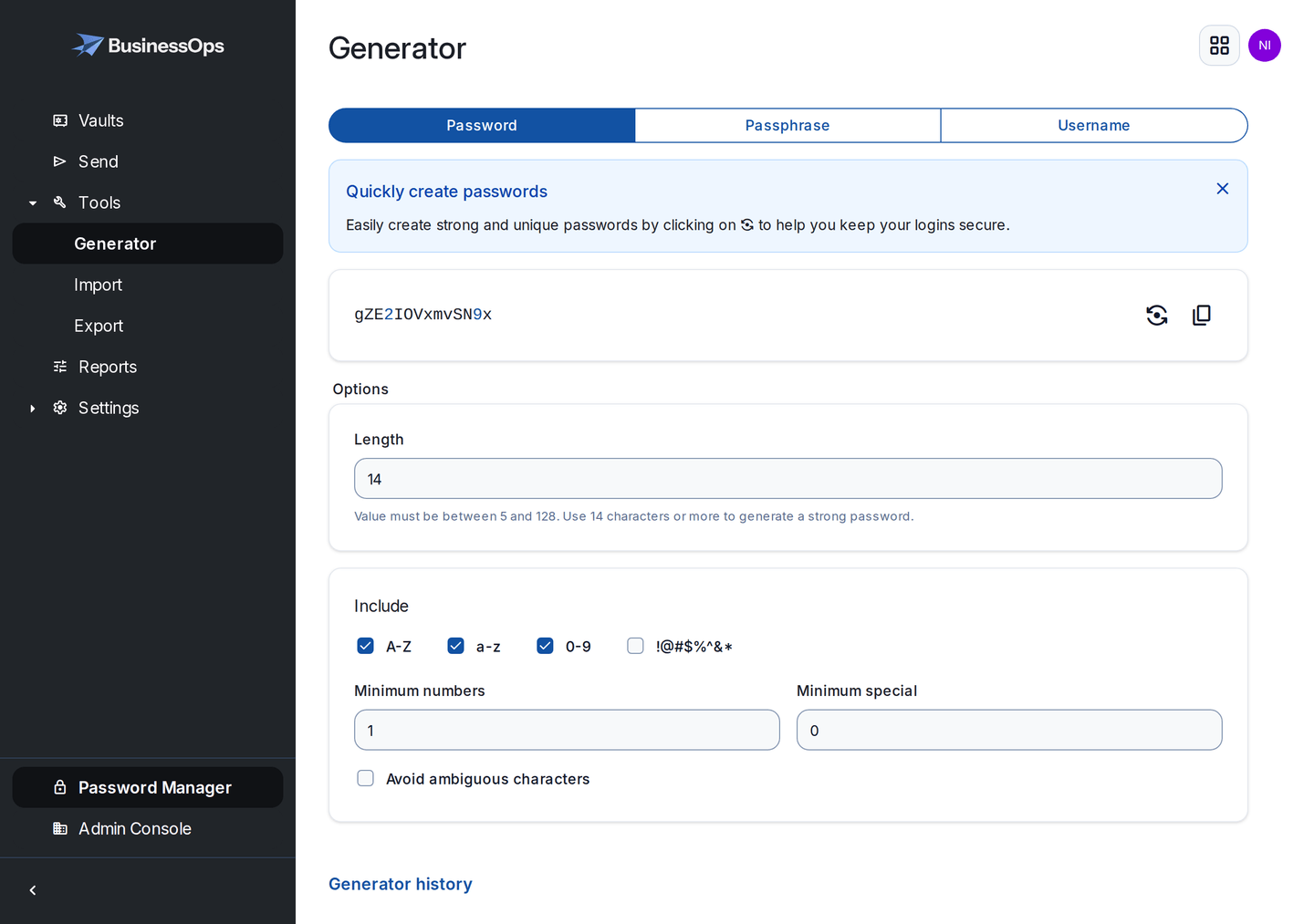
- For website logins: take the default random password. Length beats cleverness, and you are never typing it.
- For anything you will have to read out or type, a wifi password, a device PIN, switch to Passphrase. Four words is far easier to say over the phone than sixteen random characters, and no weaker.
- If a site rejects it, and some banks still do, turn off special characters or shorten it rather than inventing something memorable.
What is in an item
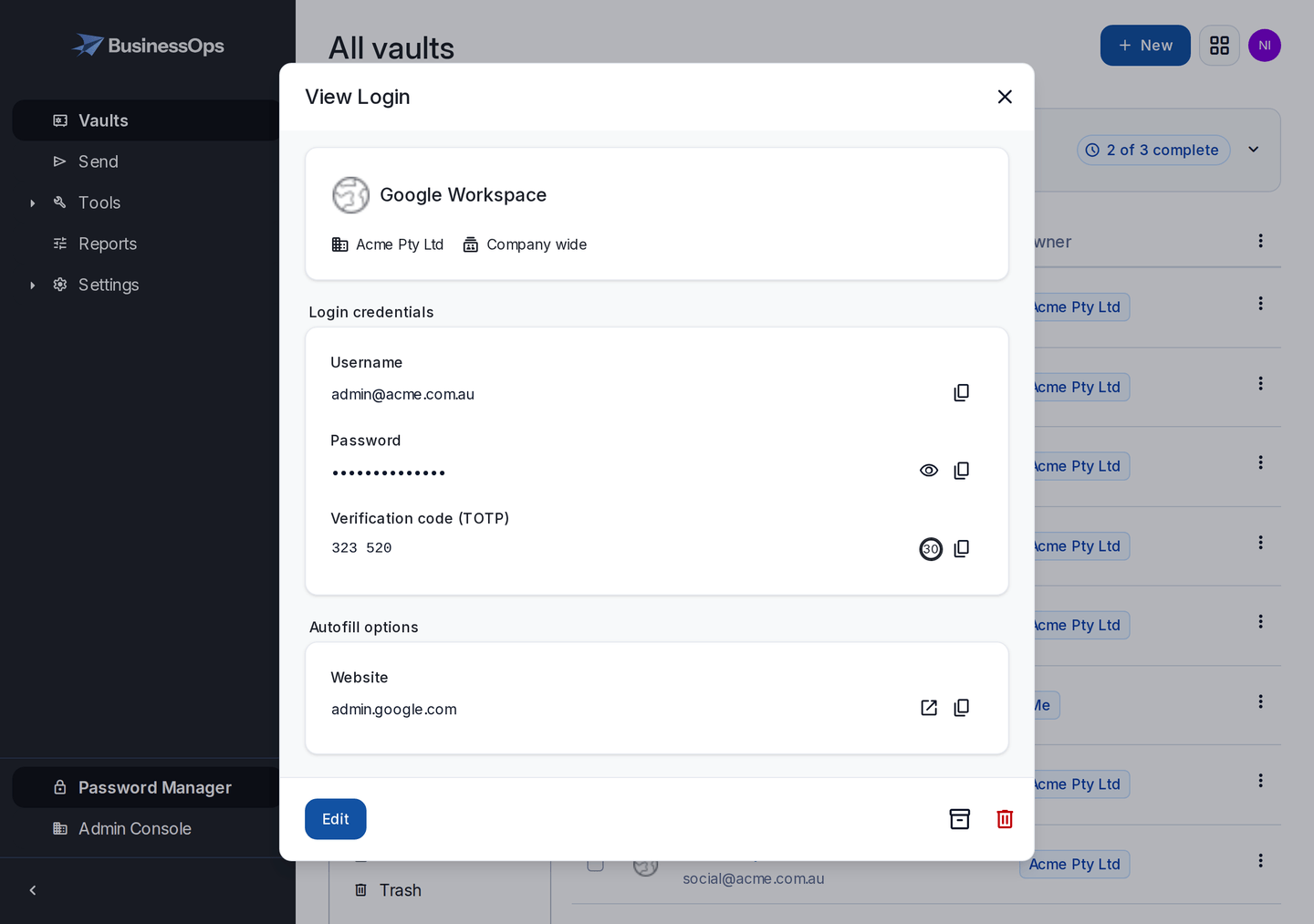
| Field | Worth knowing |
|---|---|
| Owner | You or the organisation. This is the sharing switch. |
| Collection | Which group of people get it. Only on organisation items. |
| Website | Fill it in. Autofill matches on this, so a missing address means the login never offers itself. |
| Verification code | The six digit two-factor code for that site. See below. |
| Notes | Account numbers, which card the direct debit is on, who to ring. This is where your business knowledge should live instead of in someone's head. |
| Master password re-prompt | Ask for the master password again before showing this item. Turn it on for banking. |
Two-factor codes for shared accounts
This solves a problem every small business has: the socials have two-factor turned on, the codes go to one person's phone, and that person is on leave.
Your vault can hold the code generator itself. Put it on the item, and everyone with access to that collection can get the current code.
On the website, start setting up two-factor with an authenticator app
It shows you a QR code and, usually, a setup key in text form.
Paste that key into the item's verification code field
In the browser extension you can capture the QR code directly.
Finish the website's setup with the code your vault now shows
Save the site's recovery codes into the same item's notes
They are the way back in when the account gets locked.
Do this for shared accounts, not for your own master password. Keeping your vault's own two-step login inside the vault it protects is a locked box with the key inside. See two-step login and recovery.
Finding things fast
- Search first, always. It searches names, usernames and website addresses. Nobody should be scrolling.
- Favourites pin the handful of logins someone uses every day to the top.
- Collections are the shared structure, and the one that controls access.
- Folders are personal and private. Your folders are not visible to anyone else, and they do not affect who can see what.
Name things the way people will search for them. ANZ beats Business account portal. Add the brand name people say out loud, and put the formal name in the notes.
Moving a personal item into the business
The most common tidy-up. Someone saved a business login into their own vault and it needs to be shared.
Open the item
Change the owner from yourself to the organisation
Choose the collection it belongs in
Save
Everyone with access to that collection can see it within seconds. The copy in the person's own vault is gone: the item moved, it was not duplicated.
Do this before someone's last day, not after. Once an account is removed, whatever was in their personal vault leaves with them. Put "move business logins to collections" on the offboarding checklist, see when someone leaves.
Getting back something deleted
Deleted items go to Trash rather than disappearing. Open it, find the item, restore it. Organisation items deleted by a member land in the organisation's trash, which owners and admins can reach.
Nothing is removed from trash on a timer, so a deleted item stays recoverable until somebody deliberately empties it. Emptying trash is permanent: after that your only copy is your own export, which is one of several reasons to have one.
Checking your password health
Under Reports. Run these once a quarter. Ten minutes here is worth more than most of the security advice your business will ever be sold.
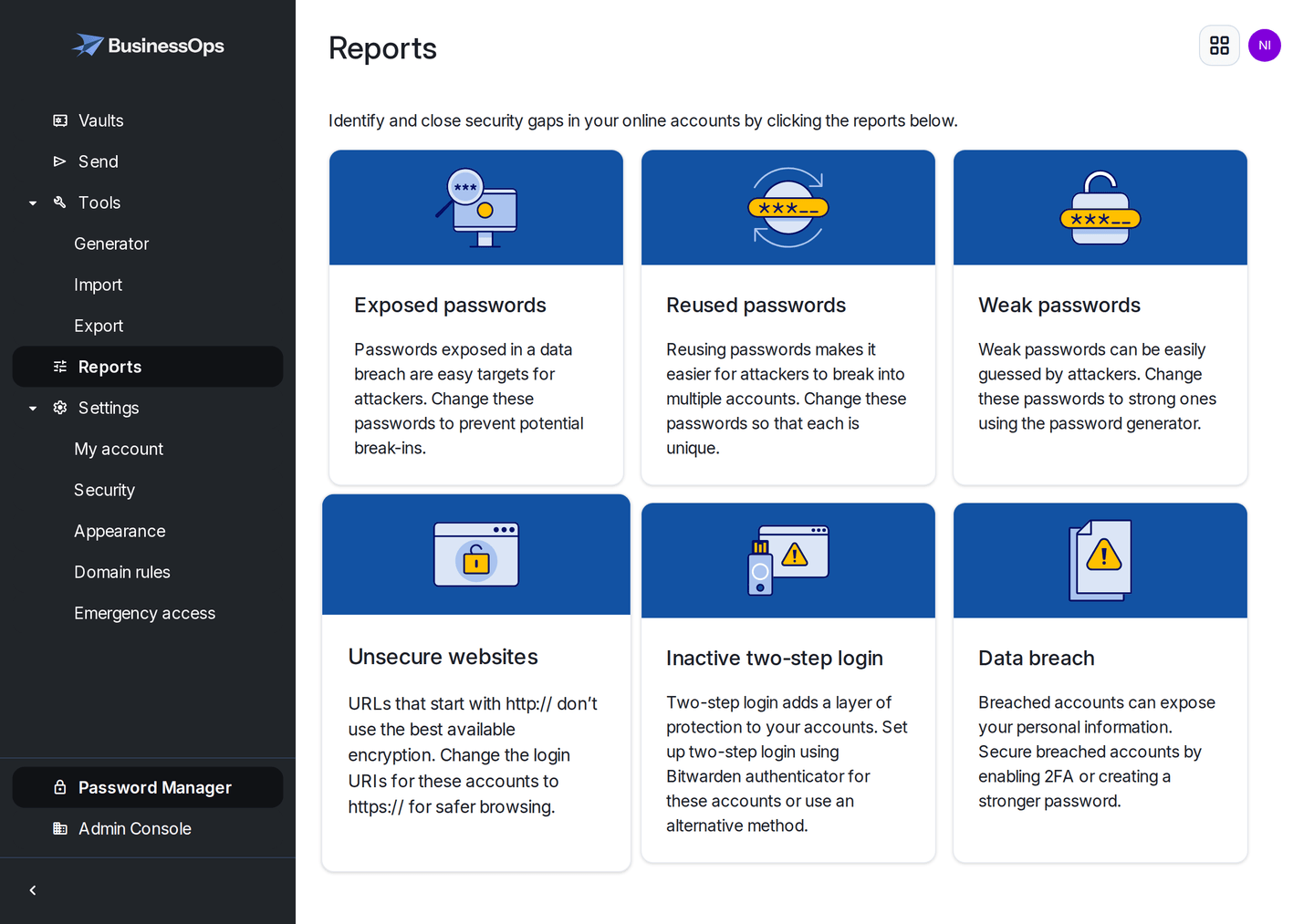
- Exposed passwords appear in known public data breaches. Change these first, today.
- Reused passwords mean one leak becomes several break-ins. This is the report that usually shocks people.
- Weak passwords are guessable. Fix the ones that matter, ignore the login for the local library.
- Unsecured websites are saved logins that send your password without encryption.
- Inactive two-factor lists accounts that support two-factor where you have not turned it on. Start with email, banking and the domain registrar.
Locking, unlocking and changing your master password
- Lock keeps you signed in and asks for your PIN, fingerprint or master password to reopen. This is what you want on a work machine.
- Log out removes the vault from the device entirely and needs a full sign-in, including two-step login. Use it on a shared or borrowed computer.
- Changing your master password is in your account settings. Everything is re-encrypted with the new one, so all your devices will ask you to sign in again. Set aside five minutes and do it when you are not in a hurry.
- Changes not showing up on another device? Pull down to sync in the phone app, or select sync in the extension. See when something is not working.
Training your team?
Send them this page and install the apps. Between them they cover everything a staff member needs, and neither assumes any technical knowledge.